docs / providers / youtube music
Providers · chapters · 10 of 25
YouTube Music
Your liked songs and playlists from YouTube Music, and search, played in YouTube's own player.
facts
- status
- beta
- kind
- source
- on by default
- yes
- needs
- Google account, Your own Google Cloud OAuth client with YouTube Data API v3
- platforms
- iPhone, iPad, Mac, Vision Pro, Android, Android TV, Linux, Windows
Description
YouTube Music lists your music through Google’s official YouTube Data API and plays it in YouTube’s embedded player. Yafmp does not extract the audio. A small YouTube player floats over the window while a song plays; YouTube’s terms require the player to stay visible.
The library shows Liked Songs, Artists and Albums (both built from your liked songs), Liked Music Videos, Playlists, Subscriptions and Trending. Only music is listed. Songs from YouTube Music’s catalogue appear as plain songs with album and year; other music videos carry a “video” badge. Search finds music videos that are allowed to play outside YouTube.
It is not on Apple TV or FreeBSD.
Requirements
- A Google account.
- Your own OAuth client in a Google Cloud project, of the type “TVs and Limited Input devices”, with “YouTube Data API v3” enabled. Yafmp ships without one. You make it once and can use the same client ID and secret on every device and in both editions.
- A second device with a browser, or a browser on the same device, to enter the sign-in code.
- Desktop: about 100 MB of download the first time a YouTube song is played. This is the Chromium browser that runs YouTube’s player.
Setup
Make the OAuth client, once:
- Go to
console.cloud.google.comand make a project. - Enable “YouTube Data API v3” for the project.
- Set up the OAuth consent screen: External, Testing, and add your own Google account as a test user.
- Under Credentials, choose Create OAuth client ID and pick “TVs and Limited Input devices”.
- Copy the client ID and the client secret.
Sign in, on each device:
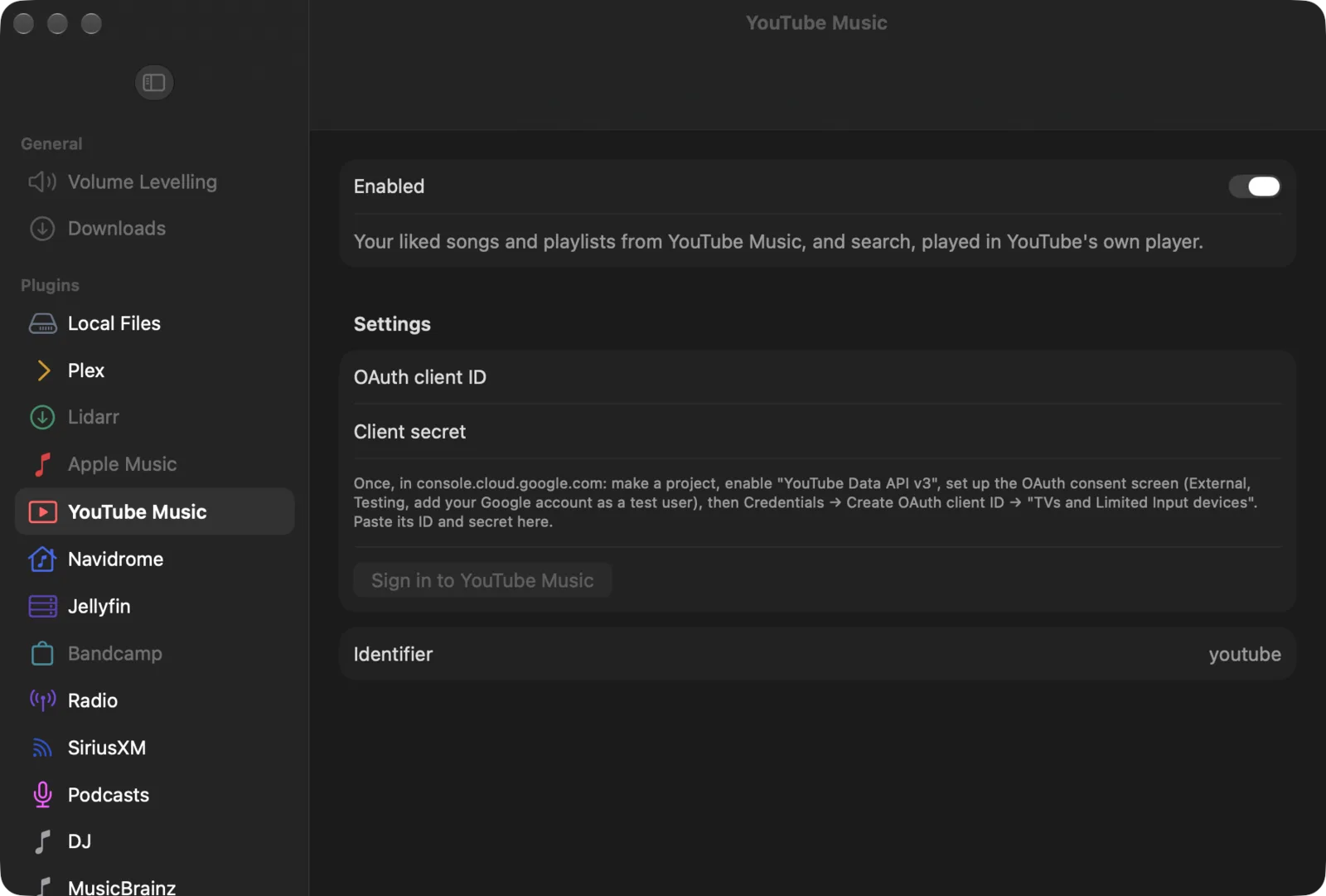
- Open Preferences → Plugins → YouTube Music (Apple) or Settings → YouTube Music (Android and desktop).
- Paste the values into OAuth client ID and Client secret.
- Choose Sign in to YouTube Music. Yafmp shows an address, a short code and a QR code.
- Open the address on any device, enter the code, and allow access with the Google account you added as a test user.
- The YouTube Music rows appear in the library.
On Android and desktop, a YouTube Premium account still gets adverts after this, because the embedded player is signed in separately. Choose Sign in to the player (YouTube Premium: no ads) and sign in to Google in the window that opens.
Settings
| Setting | Default | What it does |
|---|---|---|
| OAuth client ID | — | The client ID of your Google Cloud OAuth client. Shown while signed out. |
| Client secret | — | The secret of that client. Shown while signed out. |
| Sign in to YouTube Music | — | Starts the sign-in and shows the code to enter. |
| Account | — | Apple: read-only, shows Signed in. Android and desktop show the same words without a label. |
| Sign Out | — | Forgets the sign-in. |
| Sign in to the player (YouTube Premium: no ads) | — | Android and desktop: signs YouTube’s embedded player in to your Google account. |
| Show in the library | all on | Android and desktop: one checkbox per YouTube Music row. |
On Apple the client secret is shared between your devices through iCloud Keychain. The sign-in itself is per device.
Limits
- Playback happens in YouTube’s player, outside Yafmp’s audio engine. No equalizer, compressor, visualizers or gapless playback, and no background play.
- YouTube Music never goes to a Chromecast. With a Chromecast selected, it plays on the device itself.
- Saved albums and library songs are not in the API. Artists and Albums only contain what you liked.
- Google gives each project 10,000 quota units a day. A search costs 100 units and a page of a list costs 1, so about 100 searches a day are possible.
- A list holds at most 1,000 entries. A subscribed channel shows its newest 200 uploads.
- Liked songs are loaded once per launch. A new like shows after a restart.
- Some videos refuse to play outside YouTube. Their owners decide that.
- On Apple there is no separate sign-in for the player, so a Premium account can still see adverts.
- On Android, the notification and lock-screen controls do not follow YouTube Music songs.
- On Android, Google may refuse the player sign-in with “This browser or app may not be secure”. There is no way round that.
- On FreeBSD the player cannot run, because there is no Chromium build for it. Nothing from YouTube Music plays there.
Troubleshooting
| Problem | Why | What to do |
|---|---|---|
| Signed out after about a week | The consent screen is in Testing mode, and Google ends such sign-ins after 7 days | Sign in again with a new code. |
| Google refuses the code or the account | The Google account is not a test user of your project | Add it under the OAuth consent screen’s test users. |
| “The owner doesn’t allow this video to play outside YouTube” | The video cannot be embedded | Skip it, or open it on YouTube. |
| “YouTube’s player couldn’t play this (error …)” | YouTube’s player reported an error for this video | Try another video. If every video fails, sign out and in again. |
| A “YouTube: …” message about quota | The project’s daily quota is used up | Wait until the next day. Search less; browsing lists costs far less. |
| Adverts with a Premium account (Android, desktop) | The embedded player is not signed in | Choose Sign in to the player (YouTube Premium: no ads). |
| “YouTube’s player couldn’t start” (desktop) | The Chromium download or start failed | Check the internet connection and play the song again. |