docs / providers / musicbrainz
Providers · chapters · 16 of 25
MusicBrainz
Find missing album covers, and fill in missing tags (track/disc numbers, album artist, year), from MusicBrainz and the Cover Art Archive.
facts
- status
- beta
- kind
- metadata
- on by default
- yes
- needs
- Internet connection
- platforms
- iPhone, iPad, Mac, Vision Pro, Android, Android TV, Linux, FreeBSD, Windows
Description
MusicBrainz is an open music database. Yafmp uses it, with the Cover Art Archive, to fill in what a track’s own source is missing. It does three things.
- Missing covers. When a track has no cover from its source, Yafmp looks the album up and shows the cover from the Cover Art Archive. Each album is looked up once and the answer is kept on the device.
- About the artist and the label. The text, photo and links about the playing artist come from MusicBrainz, Wikidata and Wikipedia. A record label’s page in Labels starts the same way.
- Fix Tags. Fills in blank track numbers, disc numbers, album artist, year and the MusicBrainz album id on tracks in the playlist. See Setup for the steps.
Yafmp sends artist, album and track names to musicbrainz.org to do this.
MusicBrainz is not on Apple TV.
Requirements
- An internet connection.
No account and no key are needed.
Setup
MusicBrainz is on from the start and needs no sign-in. Covers and the About text appear on their own.
To fix tags on Apple:
- Select the tracks in the playlist.
- Right-click (or long-press) the selection and choose Fix Tags from MusicBrainz.
To fix tags on Android and desktop:
- In the playlist, open the More menu and choose Select. You can also long-press a track and choose Select.
- Tap the tracks you want, or choose Select all.
- Choose Fix Tags from MusicBrainz in the bar at the top.
Yafmp says how many albums it is looking up, and then how many tracks it filled and how many it could not find. Fix Tags from MusicBrainz is only offered when at least one selected track has a blank to fill.
Settings
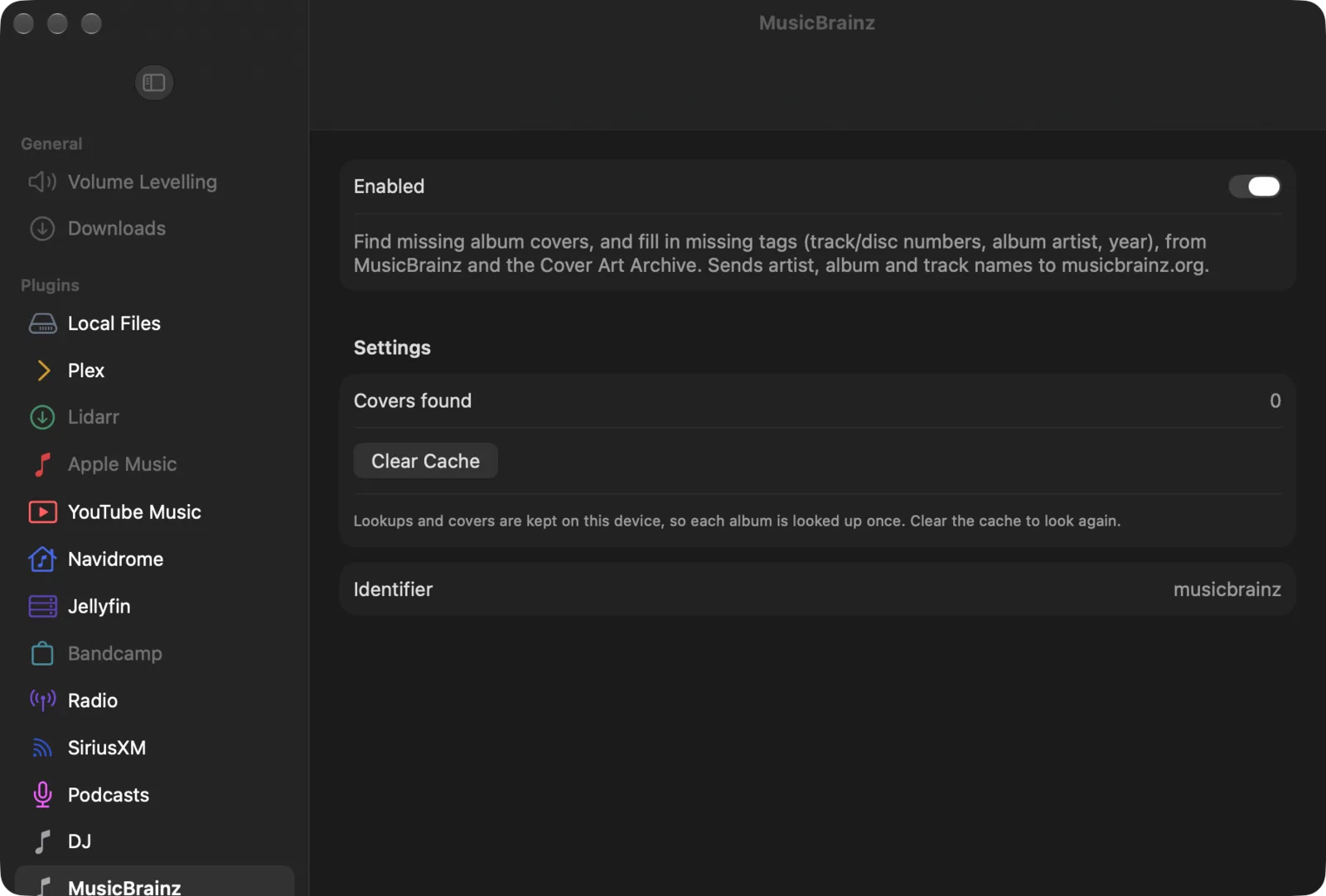
Open Preferences → Plugins → MusicBrainz (Apple) or Settings → MusicBrainz (Android and desktop).
| Setting | Default | What it does |
|---|---|---|
| Covers found | — | How many albums have a cover from the Cover Art Archive. Read-only. |
| Clear Cache | — | Forgets every lookup and removes the saved covers, so each album is looked up again. |
Limits
- Fix Tags only fills blanks. It never overwrites a tag that is there.
- Fix Tags changes Yafmp’s own playlist data. It never writes to your music files.
- Fix Tags needs an artist and an album on the track, and matches tracks to the release by title. A track whose title differs from the one on MusicBrainz is not filled.
- Only confident matches are used. A wrong cover is worse than none, so an album MusicBrainz is not sure about gets no cover.
- MusicBrainz allows one request a second, so a long selection or a large library fills in slowly.
- An album that was not found is remembered as not found until you choose Clear Cache.
- On Android and desktop, covers are not looked up for radio and SiriusXM tracks.
Troubleshooting
| Problem | Why | What to do |
|---|---|---|
| An album has no cover | MusicBrainz has no confident match, or nobody has uploaded a cover for it | Nothing in Yafmp. A wrong cover is worse than none. |
| A cover now exists in the Cover Art Archive but Yafmp still shows none | The earlier miss is remembered | Choose Clear Cache. |
| Fix Tags says some tracks were not found | No confident release match, or the track title is not on that release | Check the artist, album and title of those tracks. |
| Fix Tags from MusicBrainz is not in the menu | None of the selected tracks has a blank tag | Expected. There is nothing to fill. |
| Covers arrive slowly | Requests are spaced a second apart, and MusicBrainz sometimes asks apps to wait | Leave it running. Lookups that failed are tried again later. |