docs / yafmp / library and browser
Yafmp · chapters · 05 of 11
Library and browser
The library tree, the browser pane, the Now Playing panel and how Yafmp is laid out on each device.
One library for every source
Yafmp has one library. Every source you have switched on gets a heading in it (Local Files, Plex, Radio and so on), and under the heading are that source’s rows: Artists, Albums, Playlists, folders.
- Open a folder to see what is in it. Folders load their contents the first time you open them.
- In the Apple edition, click the arrow beside a source’s heading to fold the source up to just its heading.
- The row that is playing is marked.
How to play from the library is in Playing music.
Choosing what the library shows
There are two levels: switching a source off entirely, and hiding rows of a source that stays on.
Switching a source on or off
- Apple: open Preferences → Plugins, pick the plugin and set Enabled.
- Android and desktop: open Settings, pick the source and use its switch.
Hiding rows
- Apple: the slider button beside the library’s search field lists every source and its top rows (Playlists, Artists and so on) with checkboxes. Untick a source to hide it, or untick single rows. A hidden source is also left out of searches and of Home.
- Android and desktop: only Plex has this. Settings → Plex → Show in the library has a checkbox per Plex row.
The browser and Home
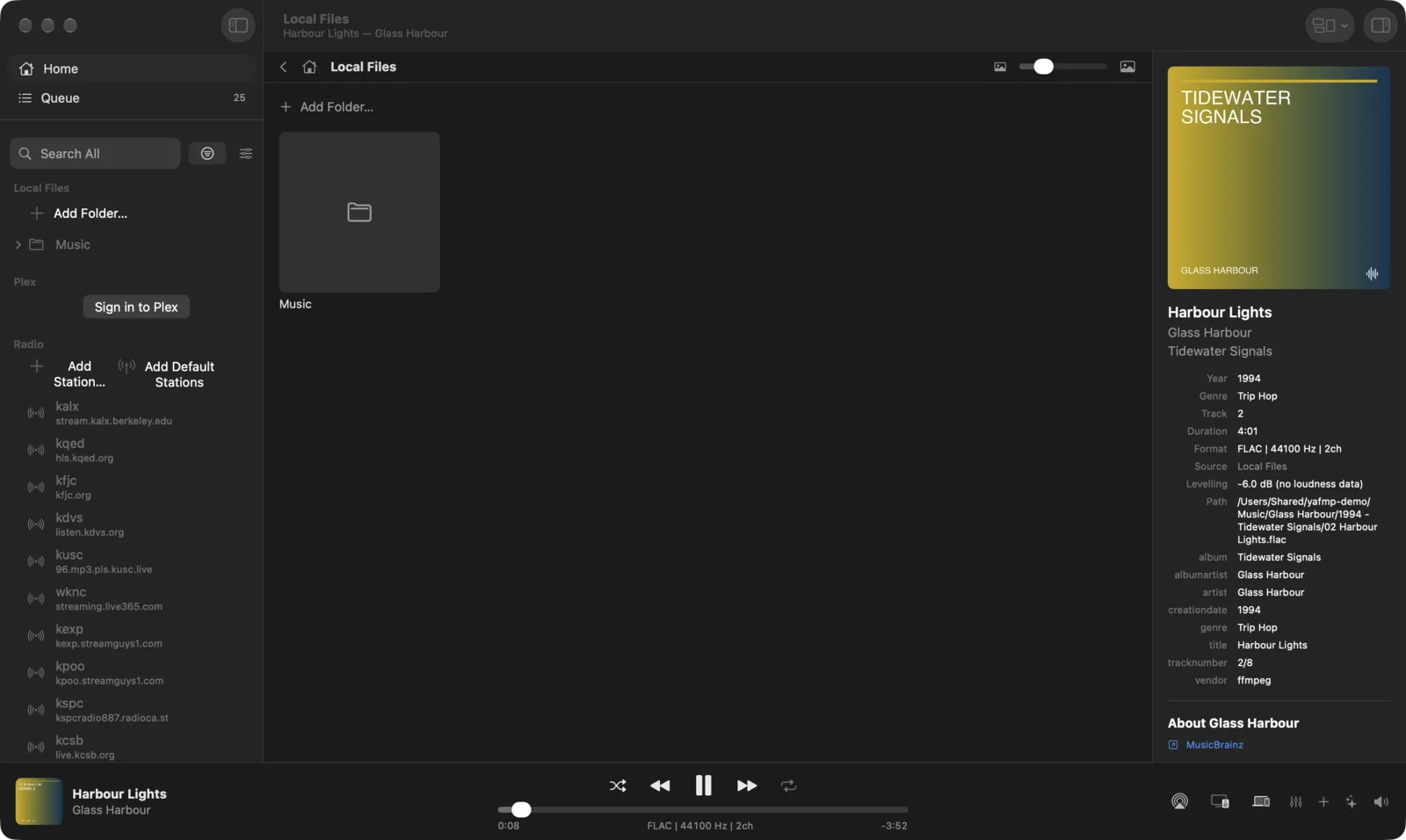
The browser is the large pane beside the library. It shows covers instead of a tree.
- Home has one tile per source. Choose a tile to open that source’s top rows.
- Choosing a folder in the library opens it in the browser. Folders, albums and artists are a grid of covers. Songs are a list.
- The back arrow goes up one step. The house button returns to Home.
- An open album shows its cover, artist, year, genre, format, song count and length, with Play and Shuffle beside the cover. The artist’s name is a link to the artist in the same source.
- A folder you can play has Play, Shuffle and Add to Queue buttons in the browser’s header.
Cover size:
- Apple: pinch, or press ⌘+ and ⌘−. The iPhone uses a fixed size.
- Android and desktop: the slider in the browser’s header.
On Android and desktop, in the layout that shows the browser above the queue, a button in the header hides the queue so the browser fills the space, and you can drag the bar between them.
The iPhone has Home and its tiles, but no pane beside the library. Search results show in the Search tab.
The artist index
Sources with large libraries split their artists and albums into A–Z folders. In the browser these do not show as 26 tiles. You get:
- A strip of letters. Letters the source has are buttons. The rest are dimmed.
- The chosen letter’s artists or albums as a compact grid, with round pictures or initials.
Above an artist list there are two shelves made from your listening history:
| Shelf | What is on it |
|---|---|
| Back in rotation | The artists you played most in the last weeks. |
| You haven’t played in a while | All-time favourites that are missing from your last months. |
The shelves come from Last.fm or ListenBrainz. They are hidden when you are signed in to neither. Choosing an artist on a shelf opens that artist in your library.
Refreshing a source
Yafmp keeps the lists it has loaded. To make a source look again:
- Right-click the source’s heading in the library (long-press on Android).
- Choose Refresh.
Rows that are open reload afterwards. Only sources that can refresh offer the item. Plex and Navidrome ask the server to rescan first, so it can take a moment.
The Now Playing panel
The panel shows the playing track’s cover and everything known about it. On Apple it is called Now Playing on the Mac and Info in the player on iPhone, iPad and Vision Pro. On Android and desktop it is Info or Now Playing.
| Part | What it does |
|---|---|
| Cover | Click or tap to open the track’s album in the browser. |
| Cover menu | Right-click or long-press for Play Album and Show Album, and plugin actions. |
| Visualizer button | On the cover’s corner. Swaps the cover for a visualizer. See Visualizers. |
| Artist and album | Links that open the artist or album in the browser. |
| Details | Album artist, year, genre, track, duration, format and source. Source opens that source in the browser. |
| Levelling | How far volume levelling turned this track down. See Sound. |
| Release | With Discogs set up: label, release date, format and genres, whether the album is in your collection or on your wantlist, and Credits. |
| About the artist | Picture, origin, the first paragraph from Wikipedia (More shows all of it) and links out. |
Sources add their own detail rows, such as a file path, a server or a share link. In the Apple edition, click a link to copy it, or use the share button beside it.
If Yafmp cannot find the album or artist in the source, it says so in the status line.
On the iPhone there is no browser pane, so the artist and album are plain text and the cover menu has Play Album only. On Android and desktop the panel also has an Output row.
About the label uses the same layout as About the artist. It is at the top of a record label’s page in the browser. See Labels.
Layouts on Apple devices
iPhone
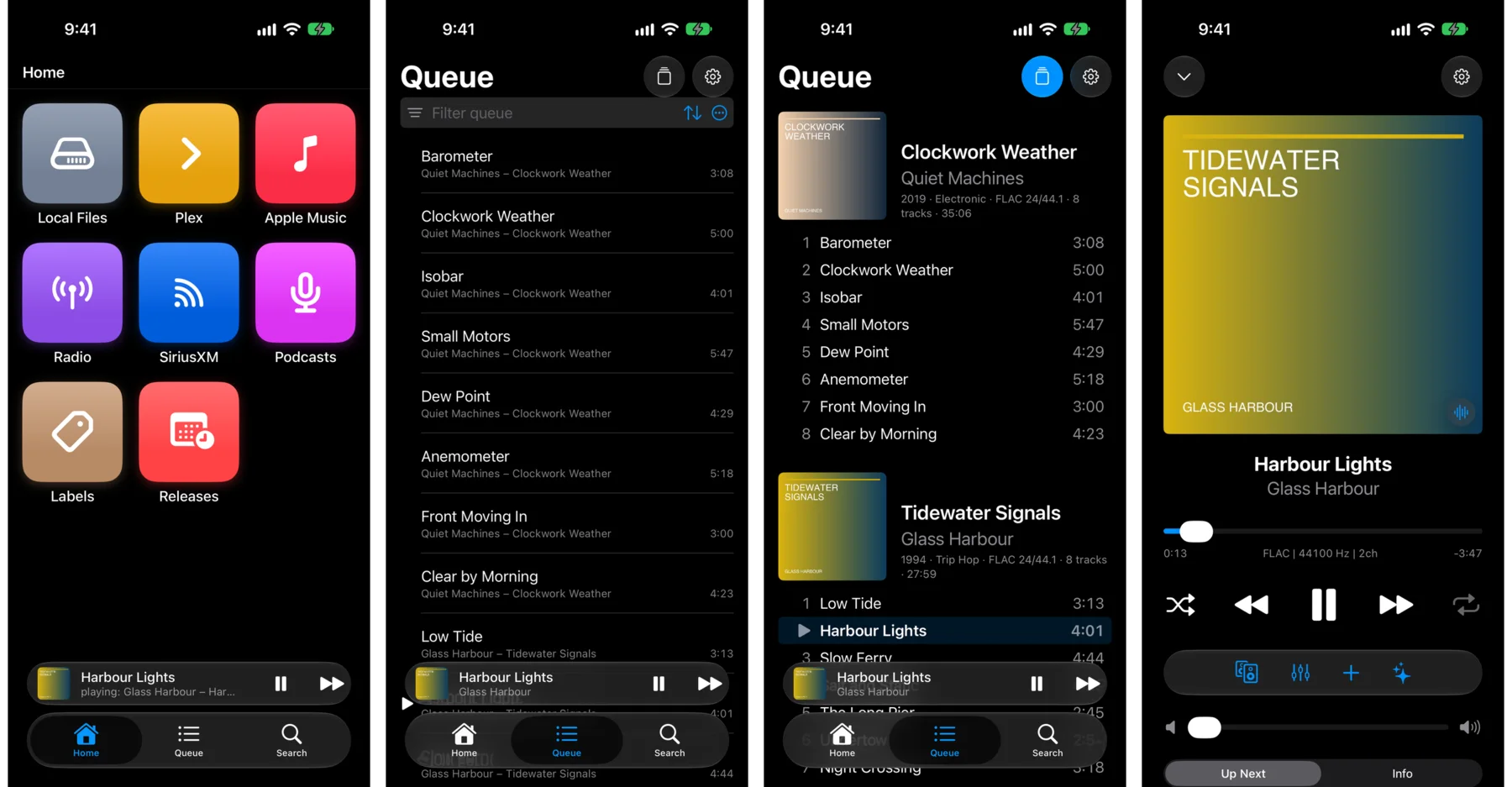
- Three tabs: Home, Queue and Search.
- While a track is loaded, a mini player sits above the tab bar with the cover, title, play/pause and next.
- Tap the mini player for the full-screen player: cover or visualizer, seek bar, transport, output and effects buttons, volume, then Up Next or Info.
iPad and Vision Pro
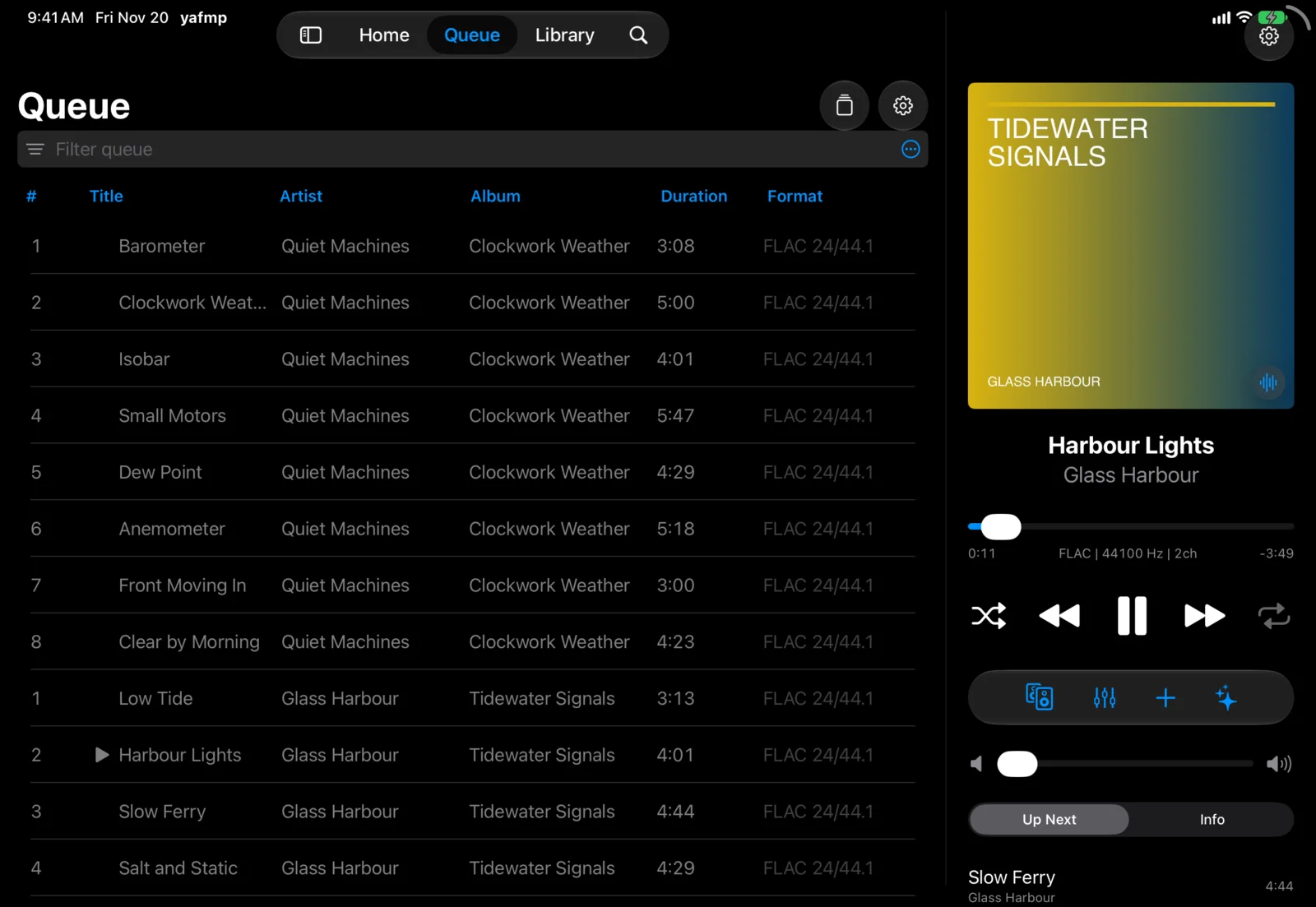
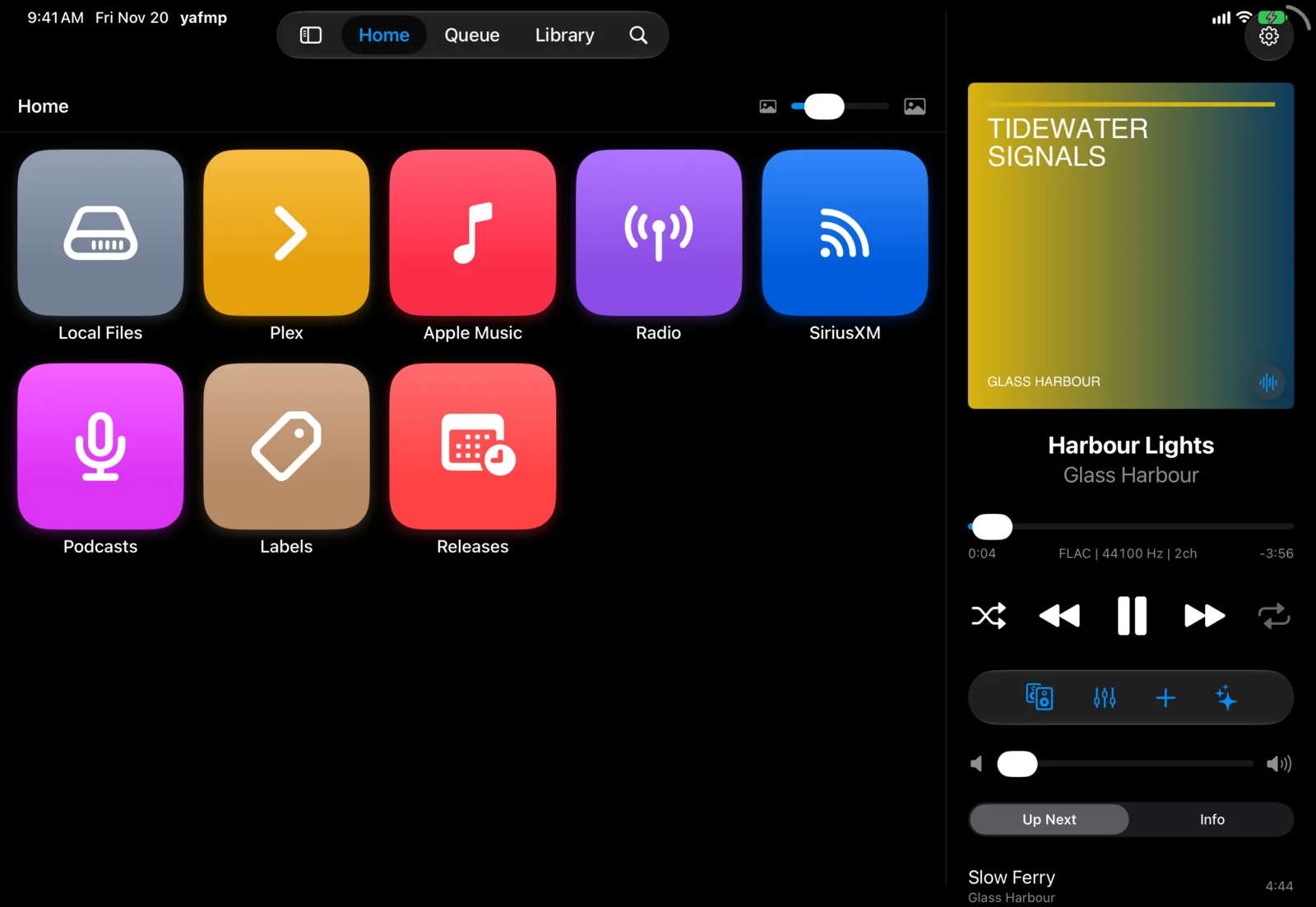
- A sidebar with Home, Queue, Search and a row per source.
- The same player as a column on the right, always visible.
- When the queue is narrow, as on an iPad in portrait, it shows one row per track instead of columns.
Mac
- A sidebar with Home, Queue, the search field and the library tree.
- The page in the middle: the browser or the queue.
- Now Playing on the right. The toolbar button or ⌥⌘I shows and hides it.
- A player bar along the bottom: the track, transport and seek, then output, effects, plugin buttons and volume. Click the track in the bar to show or hide Now Playing.
Apple TV has its own layout. See TV and Steam Deck.
Layouts on Android and desktop
Android phone
- Home, Search and Queue pages.
- A mini player with the cover, title, play/pause, next and a thin progress line. Tap it or swipe up for the full-screen player.
Android tablet (windows 900 dp wide or more)
- A rail on the left, the page in the middle and a player column on the right with Up next and Info tabs.
- A narrower window gets the phone layout.
Desktop (Linux, FreeBSD, Windows)
- A sidebar with Home, Queue, the search field with the sources, and Settings.
- The page in the middle: the browser or the queue.
- Now Playing on the right when the window is wide enough.
- A player bar along the bottom. Click the track in the bar for Now Playing.
- A window narrower than 900 dp gets a compact layout instead.
Android TV and the Steam Deck in Gaming Mode use a lean-back layout. See TV and Steam Deck.
The mini player window
On the Mac and Vision Pro, the mini player is a small window with the cover, title, previous, play/pause, next and a seek bar. Opening it closes the main window.
- Mac: choose Mini Player from the toolbar’s View button, or press ⇧⌘M. Vision Pro: use the mini player button at the top of the player column.
- To go back, use the Switch to the full player button in the mini player.
On the Mac the mini player floats above other windows. The waveform button shows or hides a spectrum analyzer and level meters inside it.
The Android and desktop edition has no mini player window.