docs / yafmp / keyboard and commands
Yafmp · chapters · 08 of 11
Keyboard and commands
Keyboard shortcuts, the command console and the Keyboard settings pane.
Apple: keyboard shortcuts
The shortcuts are the Playback and View menus on the Mac. The same keys work on iPhone, iPad and Vision Pro with a keyboard attached. On the iPad, hold ⌘ to see the list. Apple TV has no keyboard shortcuts.
All of them use ⌘ except Space, so none gets in the way of typing.
Playback
| Shortcut | What it does |
|---|---|
| Space | Play or pause |
| ⌘. | Stop |
| ⌘→ | Next track |
| ⌘← | Previous track |
| ⌥⌘→ | Forward 10 seconds |
| ⌥⌘← | Back 10 seconds |
| ⇧⌥⌘→ | Forward 1 minute |
| ⇧⌥⌘← | Back 1 minute |
| ⌥⌘S | Shuffle on or off |
| ⌥⌘R | Repeat: off → all → one |
| ⇧⌘⌫ | Clear the queue. It does not ask first. |
Volume
| Shortcut | What it does |
|---|---|
| ⌘↑ | Volume up |
| ⌘↓ | Volume down |
| ⌥⌘↓ | Mute or unmute |
The volume shortcuts are disabled while the output has no app volume, such as Apple Music or a Chromecast.
View
| Shortcut | What it does | Where |
|---|---|---|
| ⌘1 | Home | All |
| ⌘2 | Queue | All |
| ⌘F | Search the library | All |
| ⌘[ | Back | All |
| ⌥⌘I | Show or hide Now Playing | All. On the iPad the player column is always there. |
| ⌘, | Preferences | All |
| ⌘K | Command console | All |
| ⌥⌘A | Queue as Albums | All |
| ⌘+ and ⌘− | Larger and smaller covers in the browser | All |
Windows
| Shortcut | What it does | Where |
|---|---|---|
| ⌥⌘V | Visualizer window | Mac, Vision Pro |
| ⇧⌘M | Mini Player | Mac, Vision Pro |
| ⌥⌘E | Immersive, or leave it | Vision Pro |
| ⌥⌘3 | 3D Cover | Vision Pro |
To change a shortcut on the Mac, use macOS: System Settings → Keyboard → Keyboard Shortcuts → App Shortcuts. Yafmp has no key settings of its own in the Apple edition.
Apple: the command console
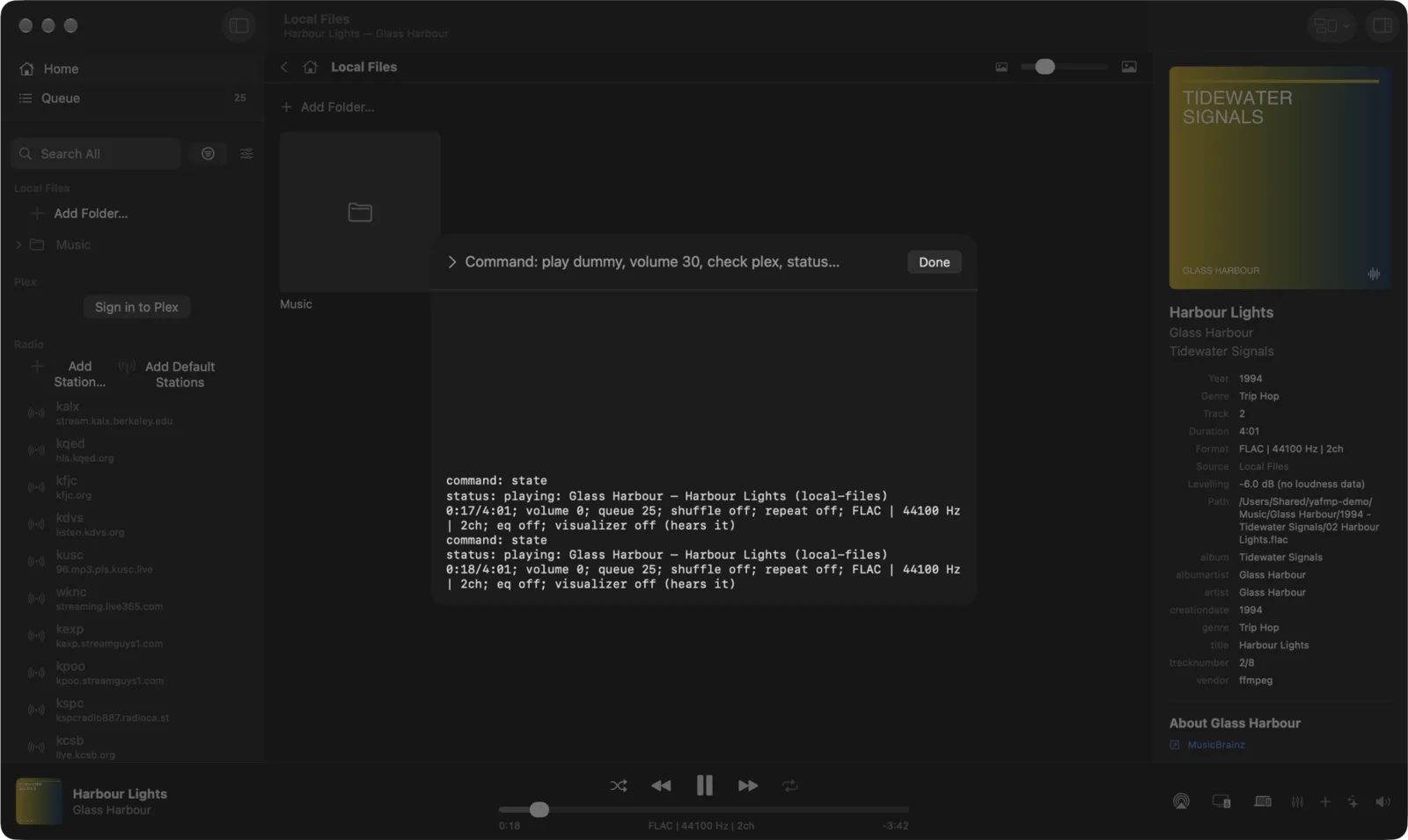
The command console is a line you type commands into. It is on Mac, iPhone, iPad and Vision Pro.
- Press ⌘K.
- Type a command’s name or part of it. Up to six matches show under the line as you type.
- Press Return to run the first match, or choose another one.
- The console stays open for the next command. What the commands report is listed below the line. Done closes it.
A command that takes text has the text after its name: volume 30, seek to 1:30, play portishead dummy. You
can type the name from either column of the tables below.
On the iPhone the console does not show while the full-screen player is open. Close the player first.
Playback
| Command | What it does |
|---|---|
play-pause | Play or pause. |
play artist, album or song | Searches the sources in order and plays the first hit. |
play-number number | Plays that track of the queue. |
next, previous, stop | Transport. |
seek-forward, seek-back | Forward or back 10 seconds. |
seek-to 1:30 or 90 | Jumps to that time. |
volume 0–100 | Sets the volume. |
volume-up, volume-down, mute | Volume in steps, and mute or unmute. |
shuffle, repeat | Shuffle on or off. Repeat off → all → one. |
clear-playlist | Clears the queue. |
status | Shows what is playing, the volume, queue length, shuffle, repeat, format and effects in one line. |
version | Shows the version and build. |
The library and getting around
| Command | What it does |
|---|---|
find text | Reports how many results each source has. |
get-info artist, album or label | Opens Get Info for that row. |
sources | Lists the sources, and whether each is on. |
source name | Opens that source in the browser. |
home, playlist, search, back | Home, the queue, search and back. |
now-playing, settings | Now Playing and Preferences. |
settings:plugin | Opens that plugin’s pane in Preferences, for example settings:plex. |
enable plugin id, disable plugin id | Switches a plugin on or off. sources lists the ids. |
albums | Queue as albums on or off. |
Visualizers and effects
| Command | What it does |
|---|---|
visualizer:style | Shows that style in place of the cover, for example visualizer:plasma. |
cover | Shows the cover again. |
visualizer-window | Mac and Vision Pro: opens the Visualizer window. |
visualizer-window:style | Mac and Vision Pro: opens the window with that style. |
immersive, immersive-off | Vision Pro: enter or leave the immersive scene. |
immersive:scene | Vision Pro: picks the scene and enters it. |
album-3d | Vision Pro: the 3D Cover. |
sparks intensity height size | Vision Pro: the Ring of Sparks dials, each 0–100. |
eq-toggle | Equalizer on or off. |
eq:preset | Sets an equalizer preset and switches the equalizer on, for example eq:Rock. |
compressor-toggle, compressor:preset | The same for the compressor. |
Plugins. These are there only while the plugin is switched on.
| Command | What it does |
|---|---|
cast device name, cast-stop | Starts or stops casting. See Chromecast. |
devices | Lists the other devices running Yafmp. See Connect. |
remote play, pause, next or previous device name | Controls another device. |
dj what to hear | Makes and plays a playlist. See DJ. |
labels name | Lists the labels you follow. With a name, follows that label first. See Labels. |
releases | Looks for new releases and opens the page. See Releases. |
Android and desktop: keys
Every command can have keys. The defaults are below. On Android you need a hardware keyboard.
Plain keys, such as Space or M, do not act while you type in a search field or in Settings.
Playback
| Key | What it does |
|---|---|
| Space, Play/Pause media key | Play or pause |
| Ctrl+→, Next media key | Next track |
| Ctrl+←, Previous media key | Previous track |
| Ctrl+., Stop media key | Stop |
| → | Forward 10 seconds |
| ← | Back 10 seconds |
| Shift+→ | Forward 1 minute |
| Shift+← | Back 1 minute |
| S | Shuffle on or off |
| R | Repeat: off → all → one |
| Ctrl+Shift+Delete | Clear the queue |
| Ctrl+I | Status |
Volume
| Key | What it does |
|---|---|
| Ctrl+↑ | Volume up |
| Ctrl+↓ | Volume down |
| M | Mute or unmute |
Getting around
| Key | What it does |
|---|---|
| Ctrl+K | Command palette |
| Ctrl+F, / | Search the library |
| Ctrl+1 | Show or hide the library |
| Ctrl+2 | Show the queue |
| Ctrl+3 | Show or hide Now Playing |
| Ctrl+, | Settings |
| Esc, Alt+← | Back |
| Ctrl+H | Library home |
| Ctrl+J | Jump to the playing track |
| Ctrl+G | Open the playing track’s album |
Extras
| Key | What it does |
|---|---|
| Ctrl+D | DJ |
| Ctrl+Shift+E | Equalizer |
| F | Visualizer full screen |
| ] | Next visualizer |
| [ | Previous visualizer |
| Ctrl+Q | Quit (desktop) |
Some commands have no key at first, such as Resume, Remove the playing track from the playlist, the equalizer presets and each visualizer style. You can give them one.
Android and desktop: the Keyboard pane
Open Settings → Keyboard. It lists every command with its keys, and has two preset buttons.
| Button | What it does |
|---|---|
| Yafmp keys | Puts every command back to the defaults above. |
| Winamp keys | Starts from the defaults, then gives the commands below Winamp’s keys. |
Winamp keys
| Key | What it does |
|---|---|
| Z | Previous track |
| X | Resume |
| C | Play or pause |
| V | Stop |
| B | Next track |
| ← | Back 10 seconds |
| → | Forward 10 seconds |
| ↑ | Volume up |
| ↓ | Volume down |
| J | Search the library |
With the Winamp preset, these commands lose their other keyboard keys. Space no longer pauses and Ctrl+F no longer searches. The media keys keep working.
Changing a key
- Choose the command in the list.
- Press the keys you want. The dialog shows them, and tells you if another command has them now.
- Choose Set to replace the command’s keys, or Add to keep its other keys as well.
A key that another command had moves to this one. The other buttons are No key (the command gets no key), Default (back to its default) and Cancel.
Android and desktop: the command palette
- Press Ctrl+K.
- Type part of a command’s name. Use ↑ and ↓ to pick from the matches.
- Press Enter to run it. Esc closes the palette.
A command that takes text needs the text after its name, for example seek to 1:30 or volume 30. If you run
one without text, the palette fills in the name and waits for the rest.
The palette lists every command, including the ones with no key: each equalizer preset, each visualizer style, each AVS preset and each Settings pane.